
Groups & who sees what
Organise learners into cohorts and control scenario access.
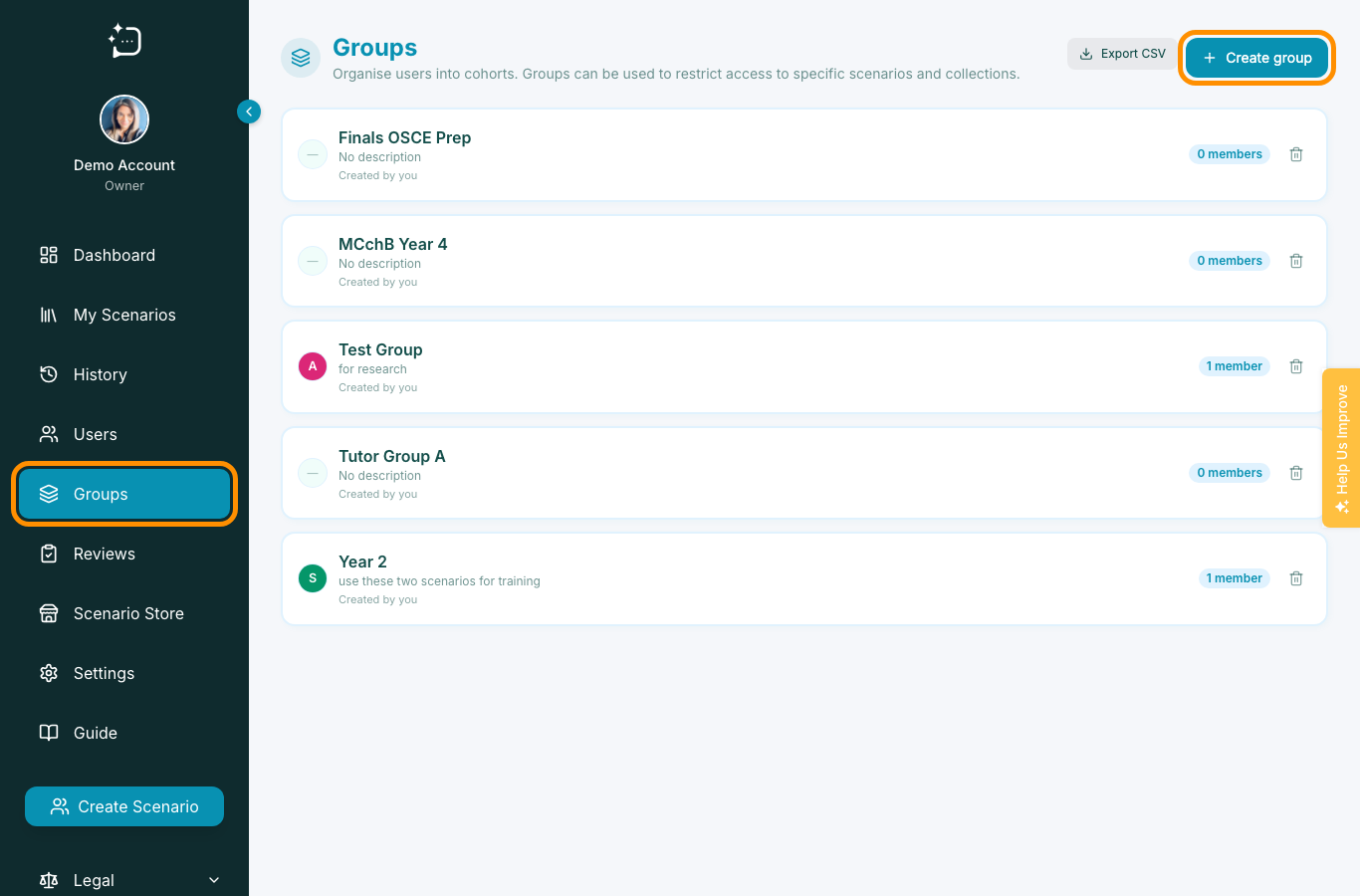
Quick steps
- 1Open Groups from the sidebar.
- 2Create a group for the cohort or teaching session.
- 3Add learners to the group.
- 4Add scenarios to the same group so only the intended learners can access them.
- 5Audit members and scoped scenarios before the module starts.
Groups control who can access specific scenarios. Create a group for the cohort, add the right learners, then scope the relevant scenarios to that same group before teaching starts.
Create a group
- Open Groups from the sidebar.
- Click Create group.
- Give the group a clear cohort name, such as Year 4 OSCE Prep or Cardiology Week 2.
- Save the group before adding learners or scenarios.
Add users to an existing group
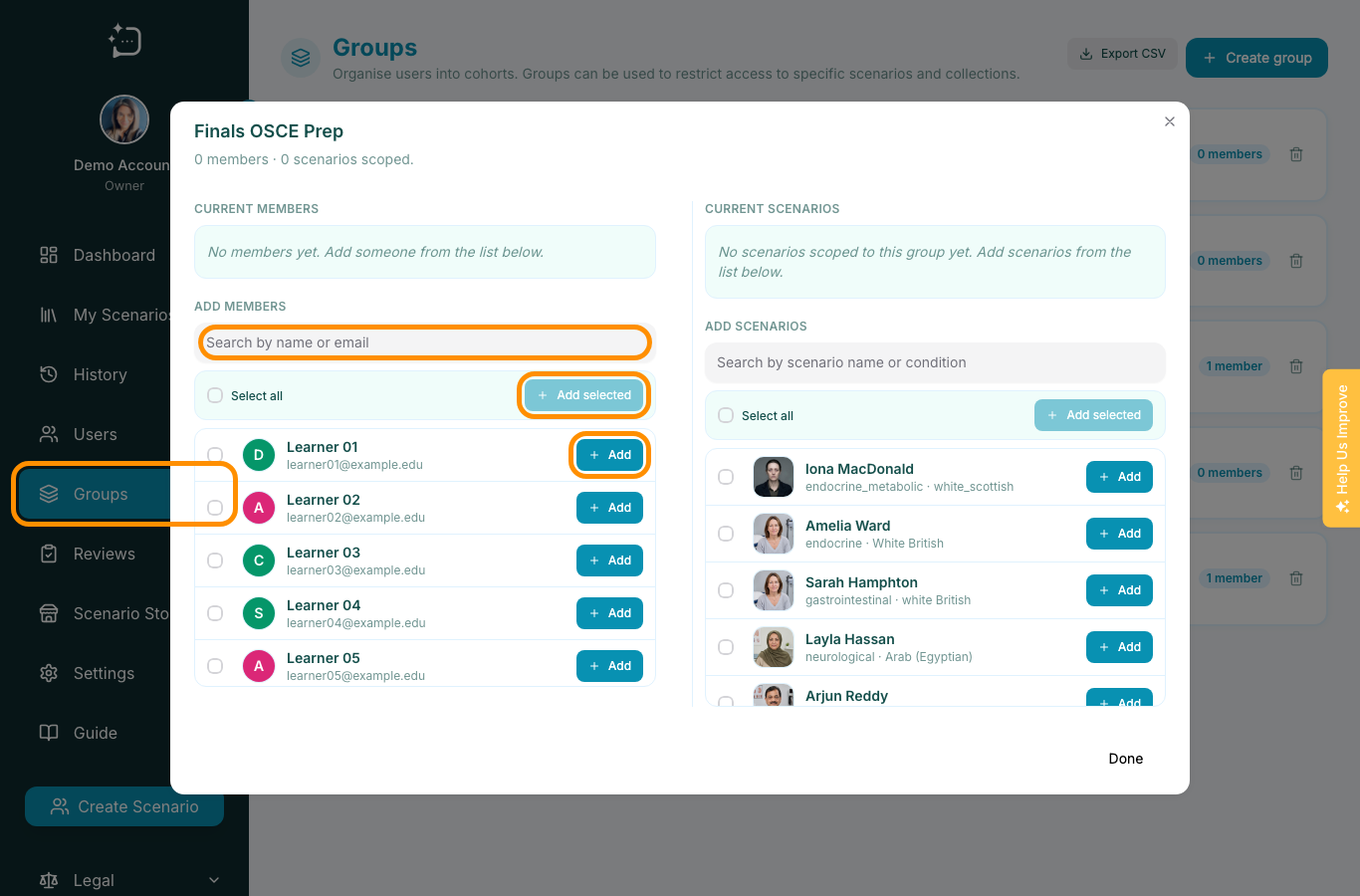
Open an existing group to manage membership. Search by learner name or email, select multiple learners and choose Add selected, or use Add beside an individual learner.
Add scenarios to the group
In the same group modal, use the Add scenarios panel to search by scenario name or condition. Add each scenario that the cohort should see. The current scenarios list shows what is already scoped to the group.
- Use one source-of-truth group name convention.
- Assign members consistently at the same interval each term.
- Map scenarios to groups before learners start the activity.
- Check both current members and current scenarios before publishing teaching instructions.
For summative sessions, isolate each exam cohort into separate groups.
Related
Did this help?
If you're still stuck, email hello@simpatient.co.uk.