
Invite learners and staff
Bring people into your organisation with invite links.
Quick steps
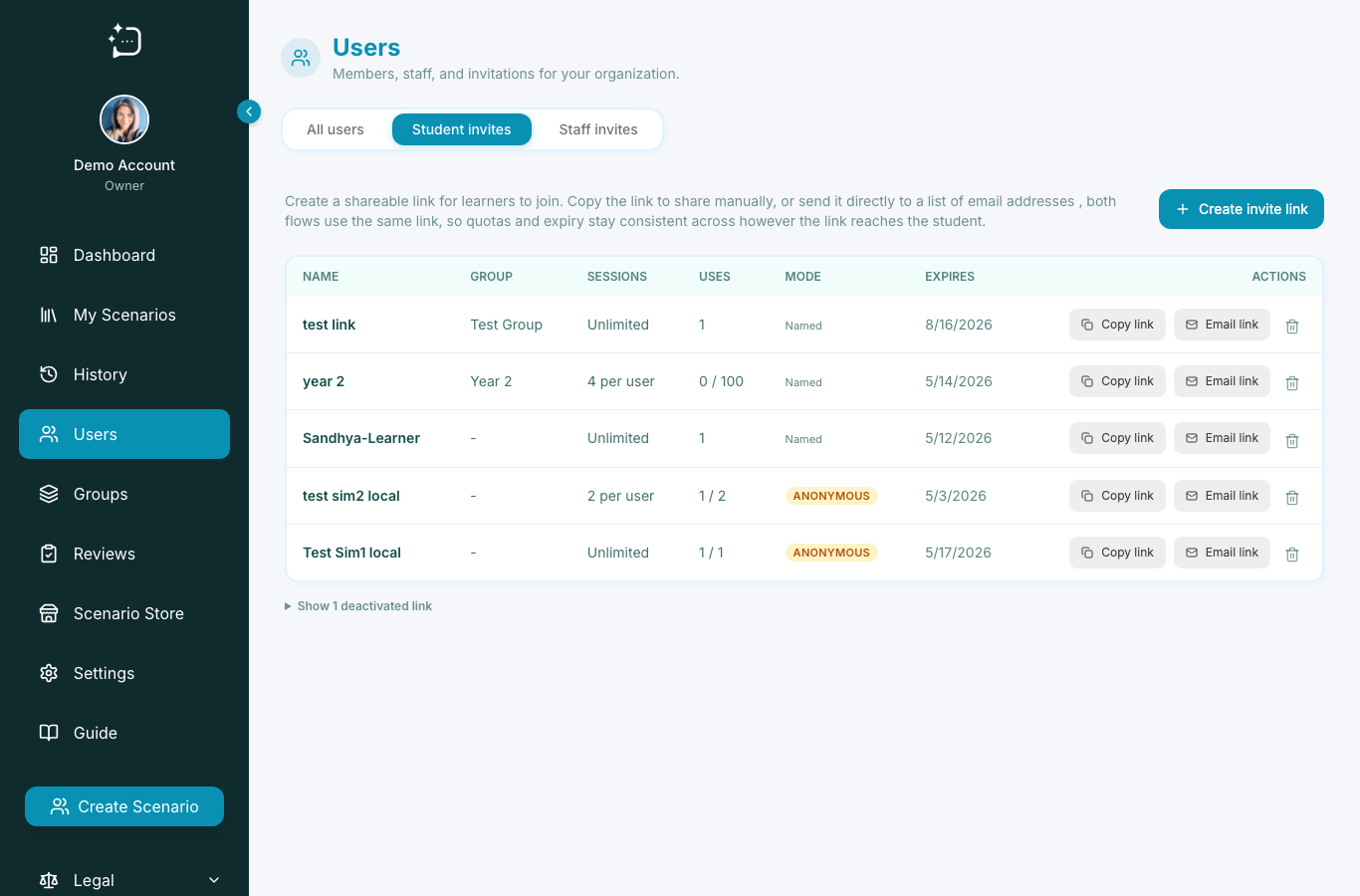
- 1Open Users from the sidebar.
- 2Choose Student invites for learners or Staff invites for colleagues.
- 3Click Create invite link.
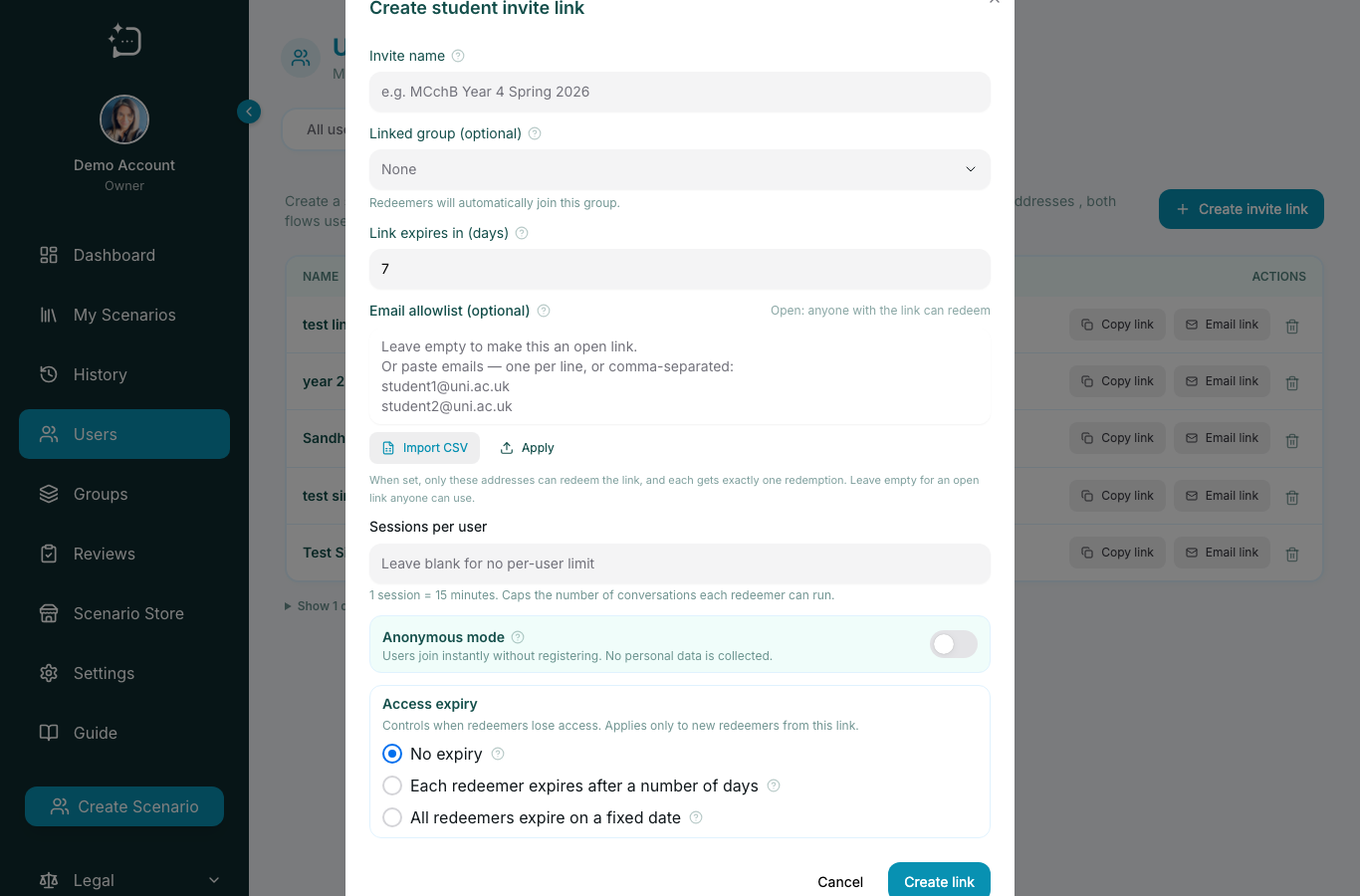
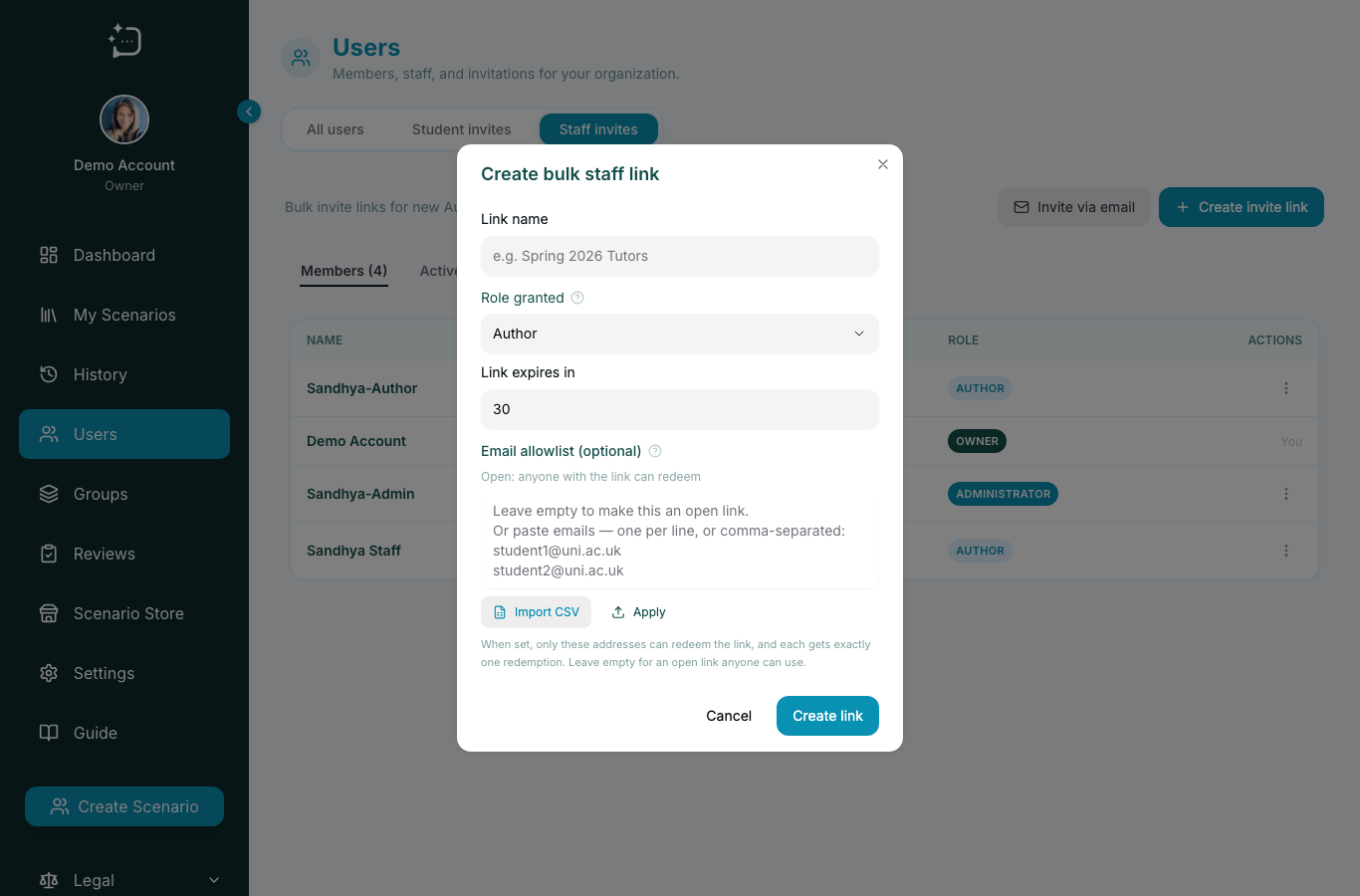
- 4Set the invite name, role or group, expiry, and any email restrictions.
- 5Create, copy, or email the link, then confirm new accounts under All users.
Invite links are fastest when the audience, role, access, and expiry are clear before you send anything. The Users admin centre separates learner onboarding from staff onboarding so the right permissions are applied from the start.
Student invites
Use Student invites when you are bringing learners into SimPatient. This tab shows learner invite links, their status, expiry, and how often each link has been used.
Staff invites
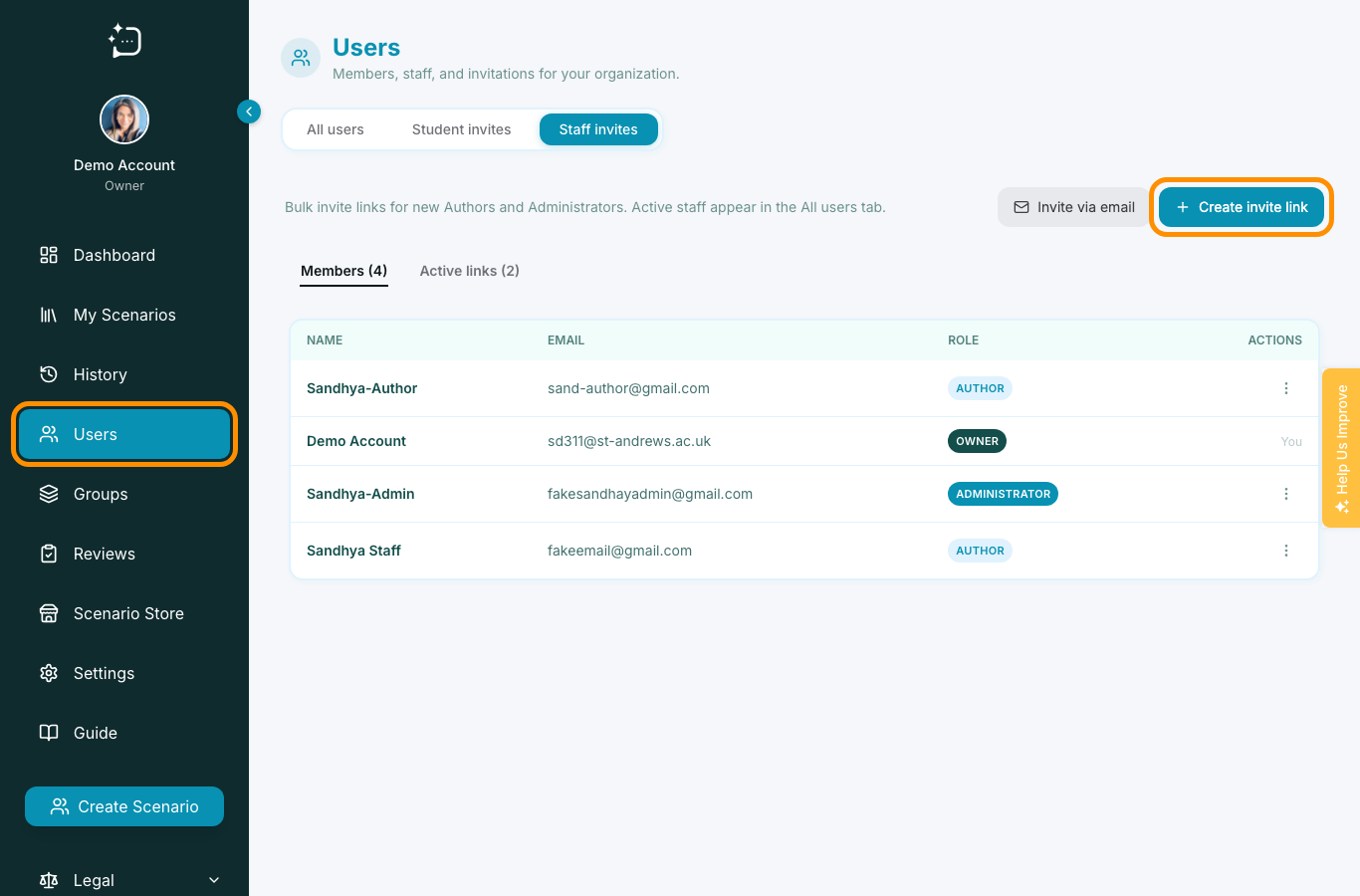
Use Staff invites when you are inviting educators, authors, administrators, or other team members. Staff links should always match the role the person needs, not the role they might need later.
Best sequence
- Open the correct invite tab for the audience.
- Create a new invite link.
- Name the invite so other admins know what it is for.
- Set group, role, expiry, and restrictions before sharing.
- Share the link through a trusted institution channel.
- Confirm successful activation in All users.
If a link was sent to an open channel or the wrong audience, disable it and create a fresh invite with tighter restrictions.
Did this help?
If you're still stuck, email hello@simpatient.co.uk.