
Use the Users admin centre
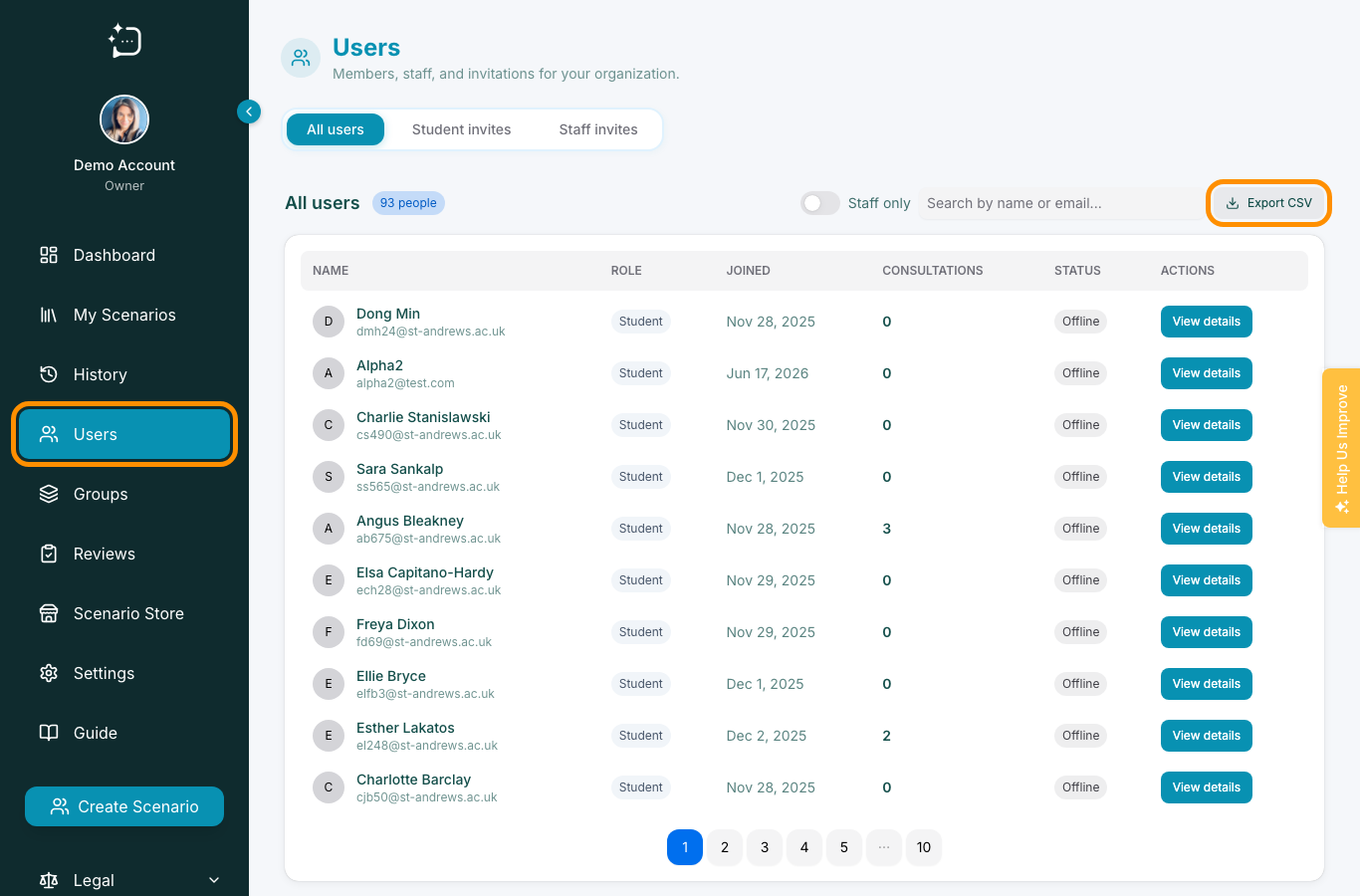
View people, filter staff, and manage student or staff invites.
Quick steps
- 1Open Users from the sidebar.
- 2Use All users to search the current roster.
- 3Turn on Staff only when reviewing authors and administrators.
- 4Use Student invites for learner links.
- 5Use Staff invites for author or administrator onboarding.
The Users admin centre has three practical surfaces: the full roster, student invite links, and staff invite links. Use it before Groups so new members exist before you assign them to cohorts.
Invite flow
- Choose Student invites or Staff invites.
- Create or copy the invite link for the intended role.
- Send it only to the intended cohort or staff group.
- Return to All users to confirm the account appears after redemption.
If a user says they cannot see scenarios, check their account, role, and group membership in that order.
Did this help?
If you're still stuck, email hello@simpatient.co.uk.