
The scenario wizard, step by step
Build a complete scenario in one guided flow.
Quick steps
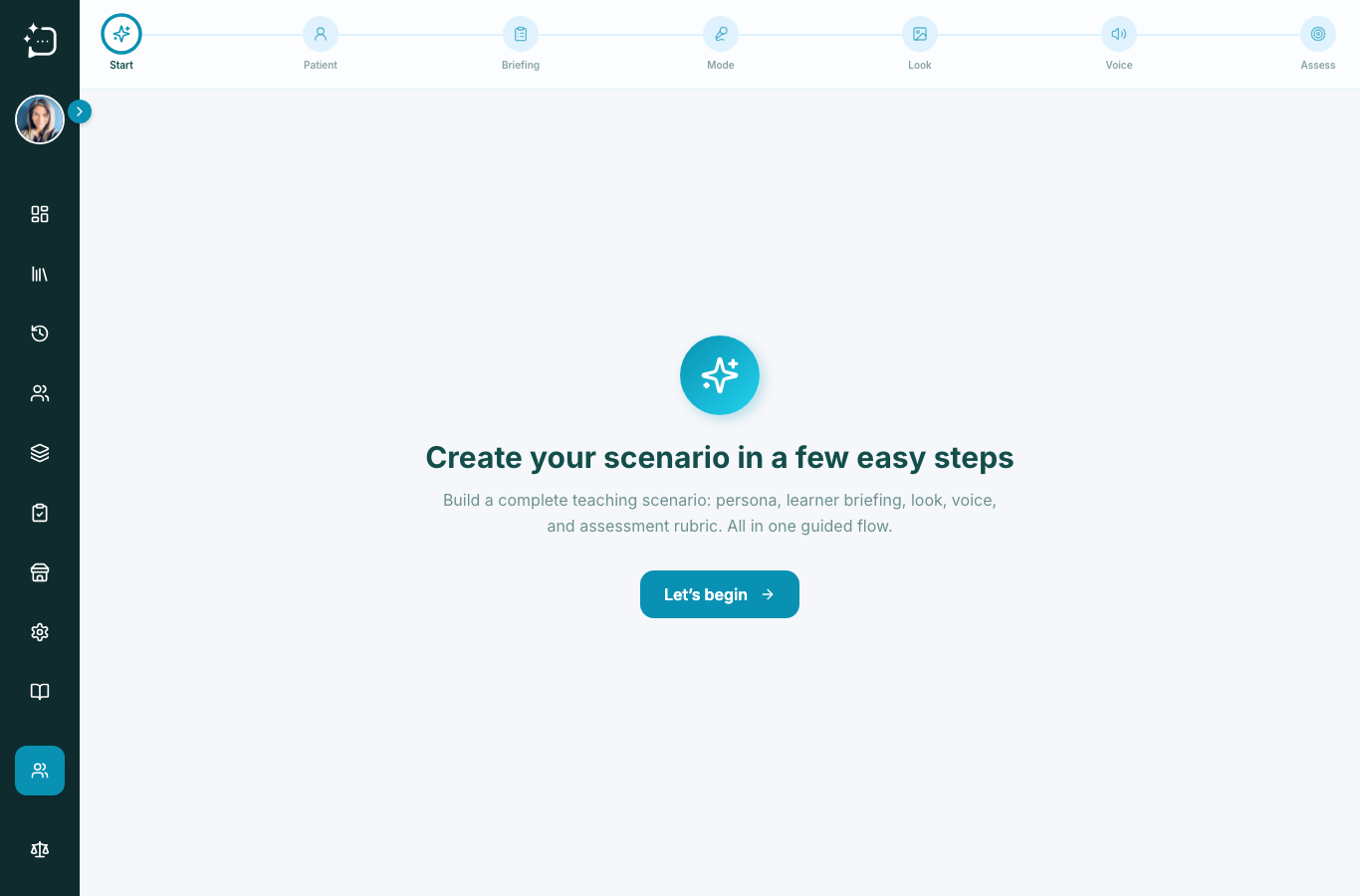
- 1Open Create Scenario and press Let's begin.
- 2Patient: add the persona details (or let the Diversity Engine fill them).
- 3Briefing: write what the learner sees before they start.
- 4Mode: choose audio or video (chat is always available).
- 5Look: pick the patient's photo or avatar.
- 6Voice: choose how the patient sounds.
- 7Assess: pick the rubric, then publish.
The scenario wizard builds a complete teaching scenario - the patient, the learner briefing, the look and voice, and the assessment - in one guided flow. The step bar at the top always shows where you are: Start, Patient, Briefing, Mode, Look, Voice, and Assess. You can save a draft at any point and come back later.
1. Start
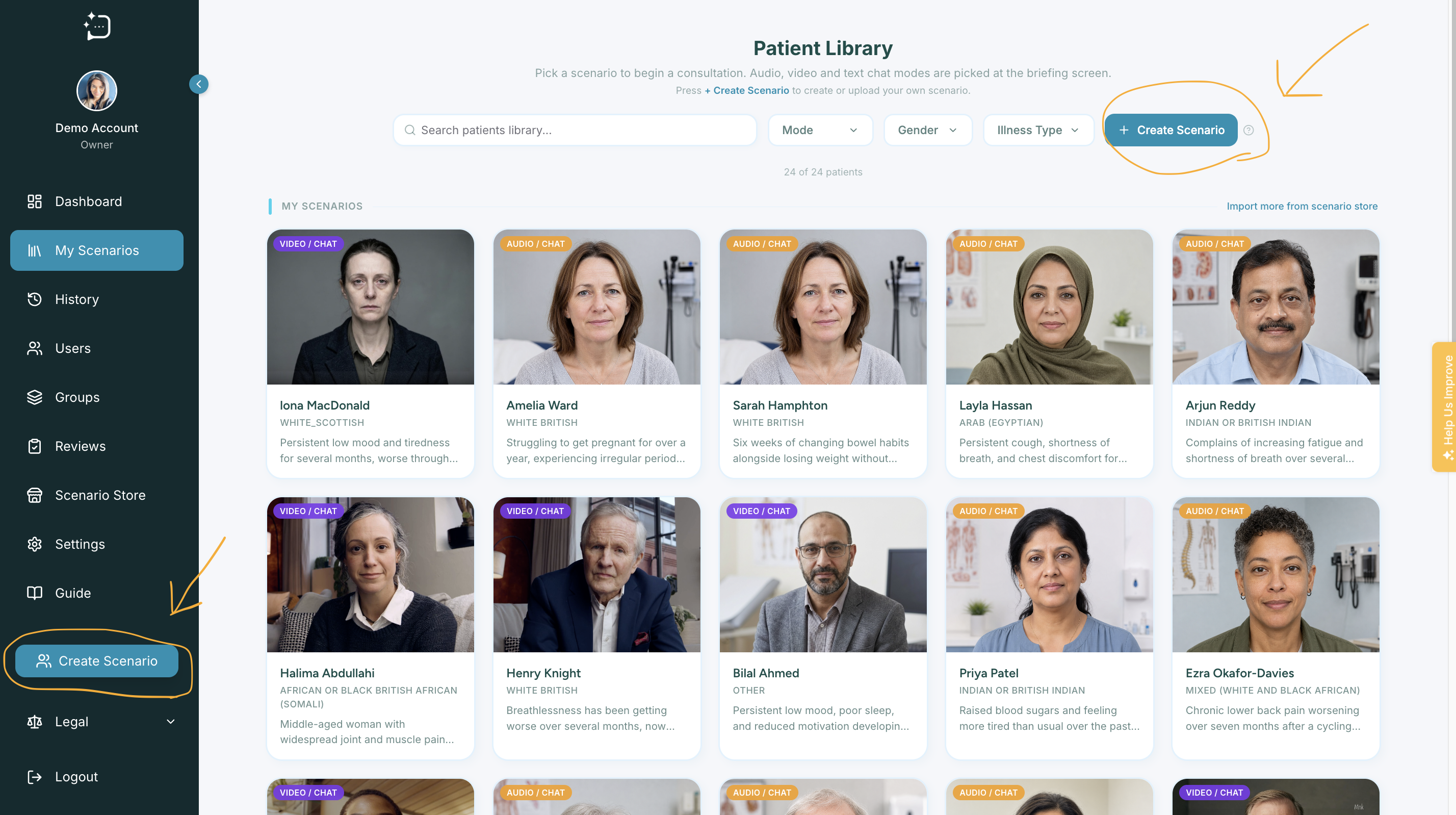
From your scenario library, select Create Scenario. The wizard opens on a welcome screen - press Let's begin to start.
2. Patient
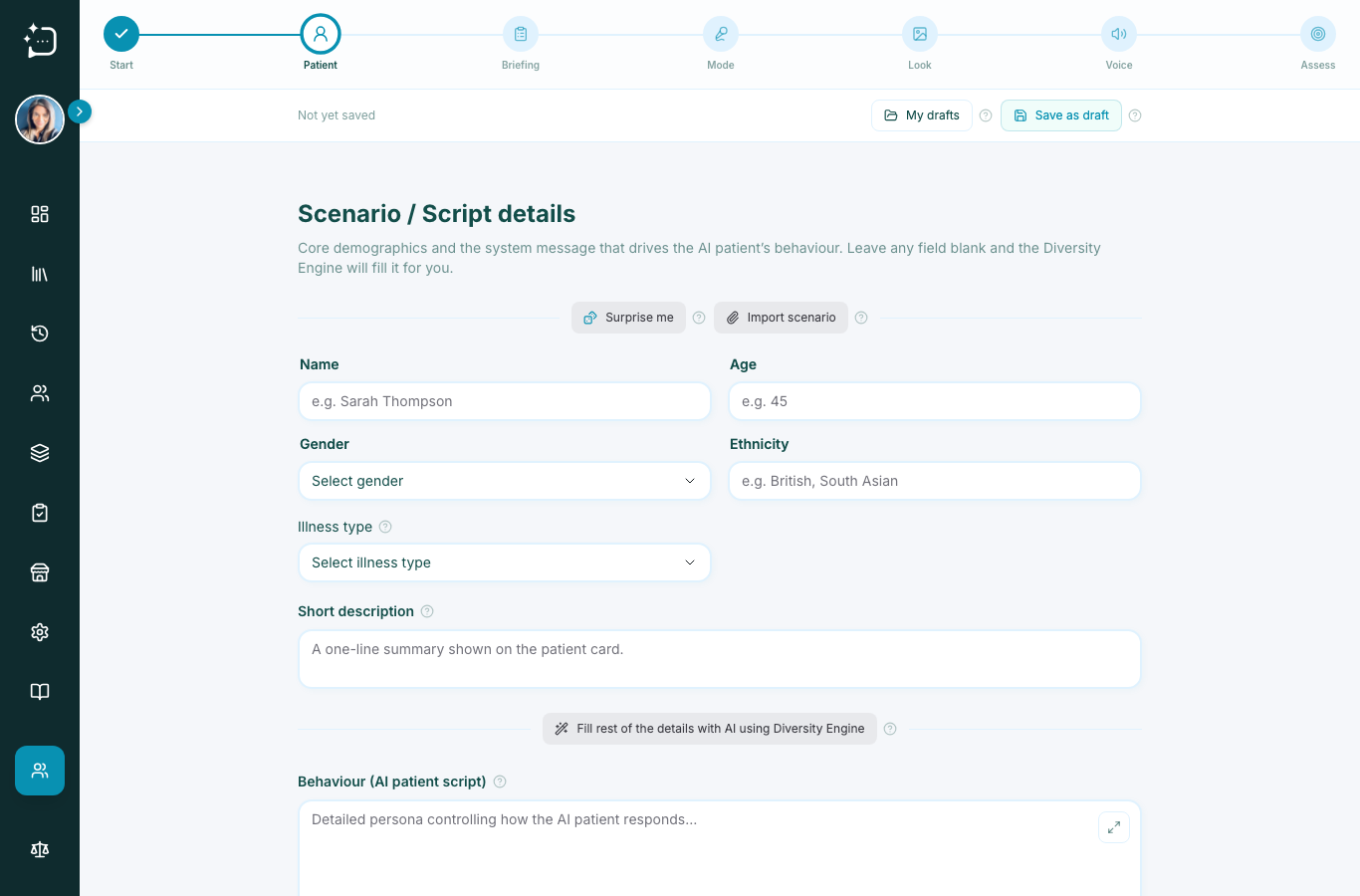
This is where you define who the patient is and how they behave. Fill in the name, age, gender, ethnicity, and a short description, then write the behaviour script that drives how the AI patient responds.
You don't have to write everything yourself. Leave any field blank and the Diversity Engine fills it for you. Two shortcuts sit at the top of this step:
- Surprise me - generates a complete, realistic patient to start from.
- Import scenario - turns an existing PDF or Word document into a scenario.
3. Briefing
The briefing is what the learner reads before the consultation begins - the presenting complaint, the setting, and the learning objectives. A clear briefing sets the learner up to know what they're walking into.
4. Mode
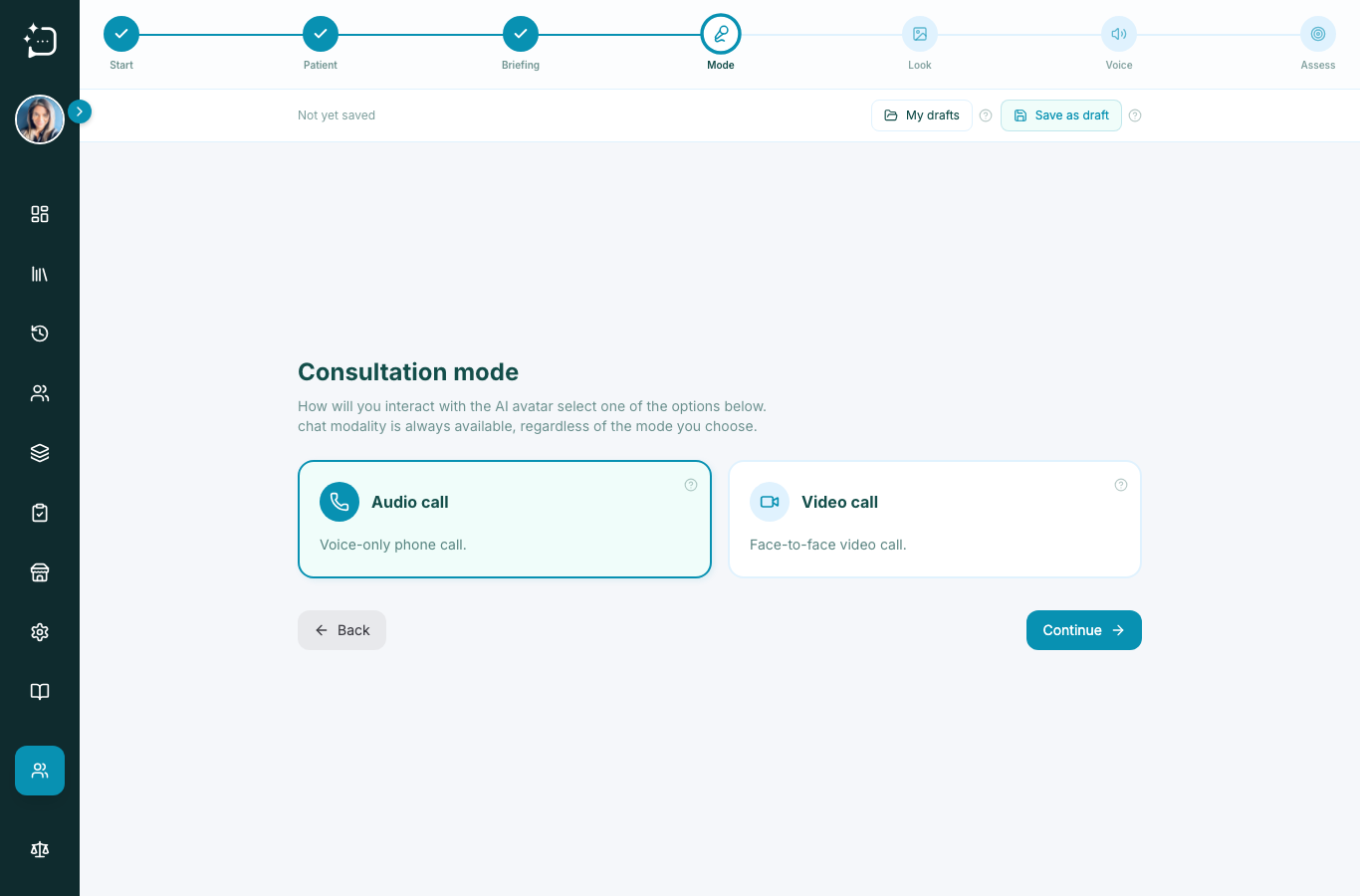
Choose how the learner will interact with the patient: an Audio call (voice only) or a Video call (a face-to-face streaming avatar). Text chat is always available regardless of which you choose, so this is really about whether the scenario also offers voice or video.
5. Look
Pick the patient's appearance - a photo for audio scenarios, or a streaming avatar for video scenarios. You can generate an image or choose from the available options.
6. Voice
Choose how the patient sounds. You can preview voices and pick the one that best fits the persona's age, background, and manner.
7. Assess
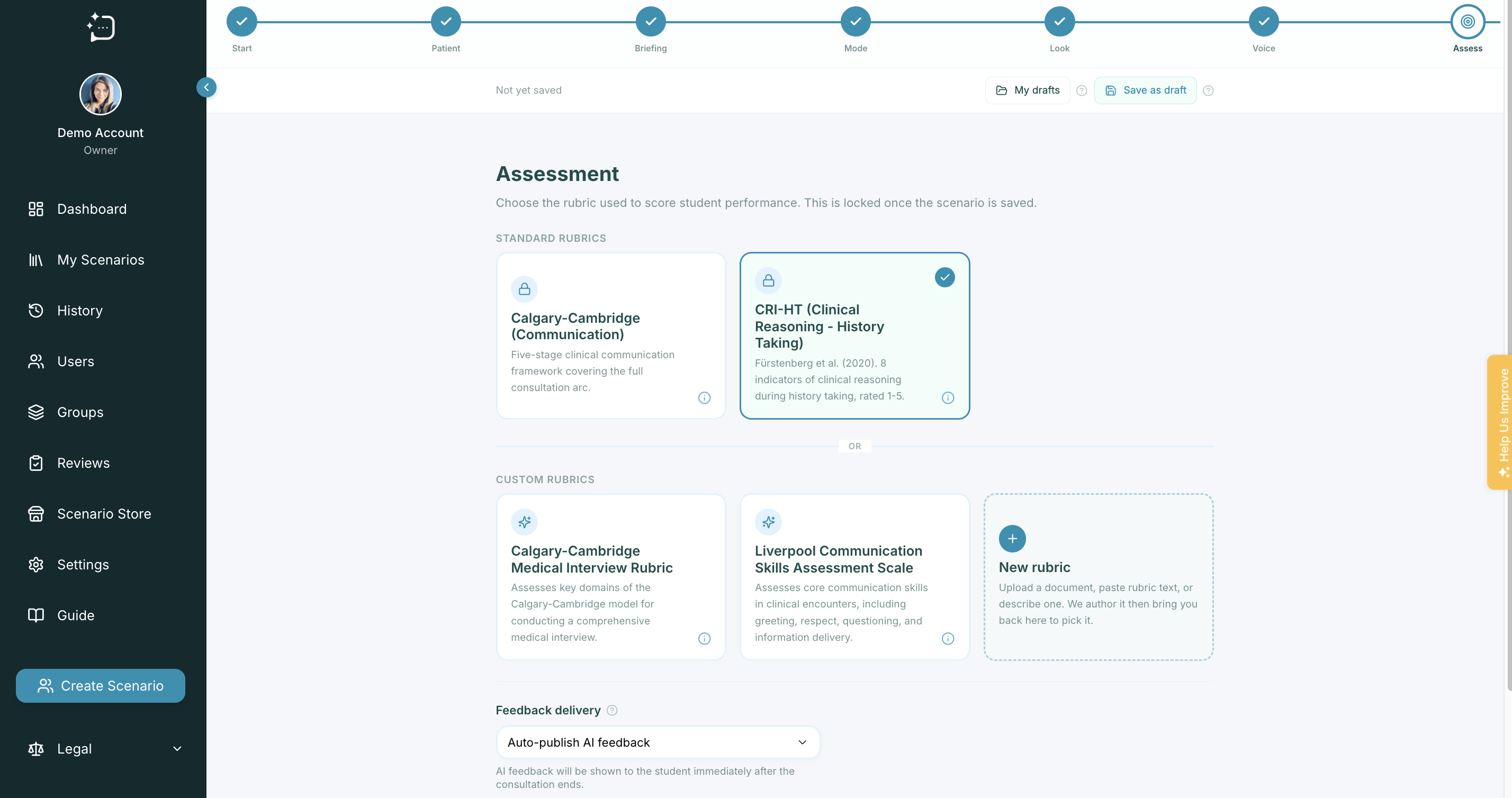
Finally, choose the rubric that will assess the consultation - this controls the feedback your learners receive. Pick one of the built-in rubrics or one your organisation has created, then publish. Your scenario now appears in the library, ready to assign.
Did this help?
If you're still stuck, email hello@simpatient.co.uk.