
Custom rubrics & assessment setup
Create, edit, dry-run, publish, and choose assessment rubrics.
Quick steps
- 1Pick a built-in rubric first.
- 2Align criteria to your assessment outcomes.
- 3Add examples for strong and weak performance.
- 4Pilot and refine after first learner cohort.
- 5Publish custom rubrics before using them in scenarios.
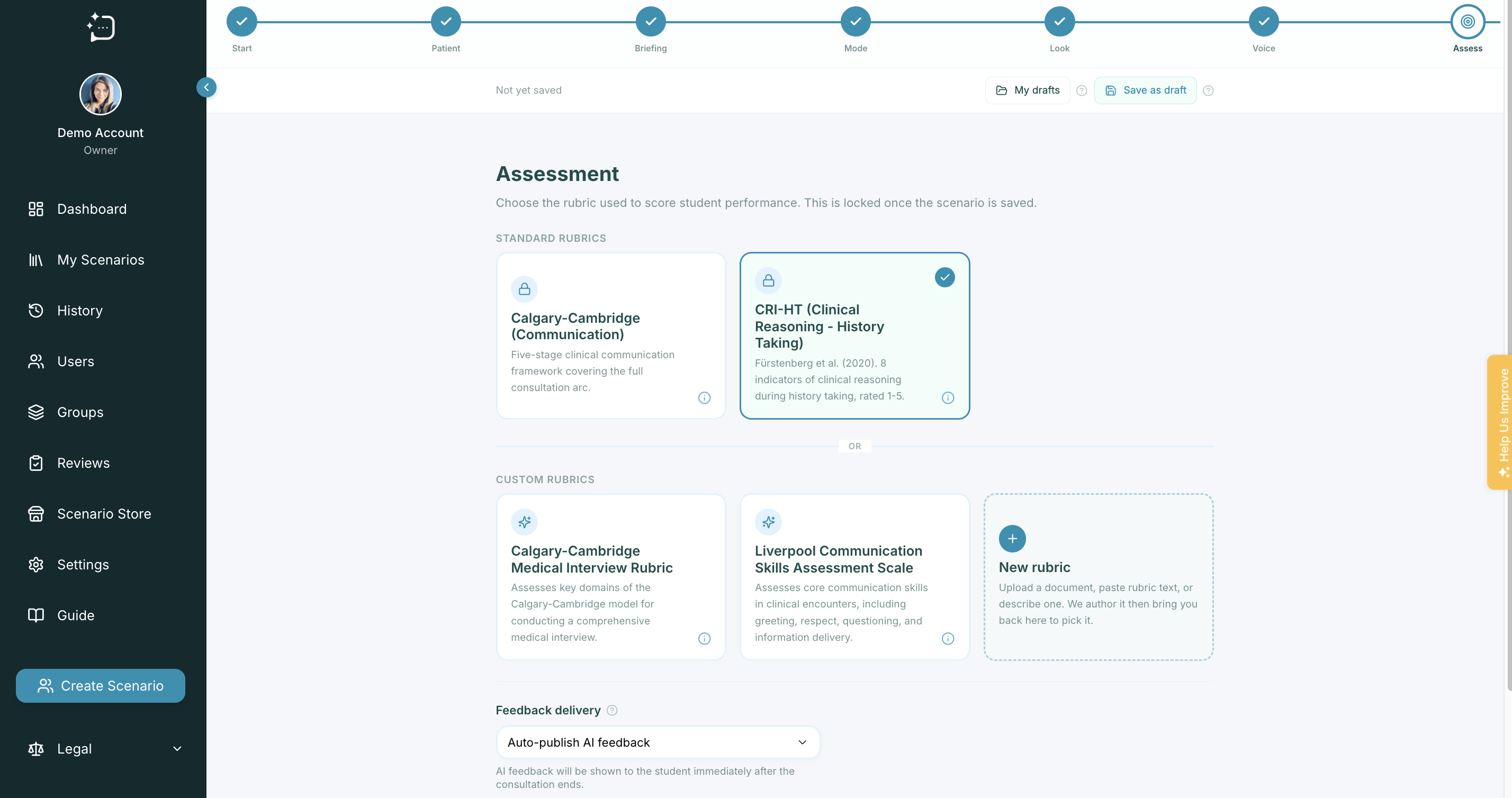
Choose rubrics based on the skills you want to improve, not on appearance. Rubric clarity determines feedback quality and learner trust.
Custom rubrics
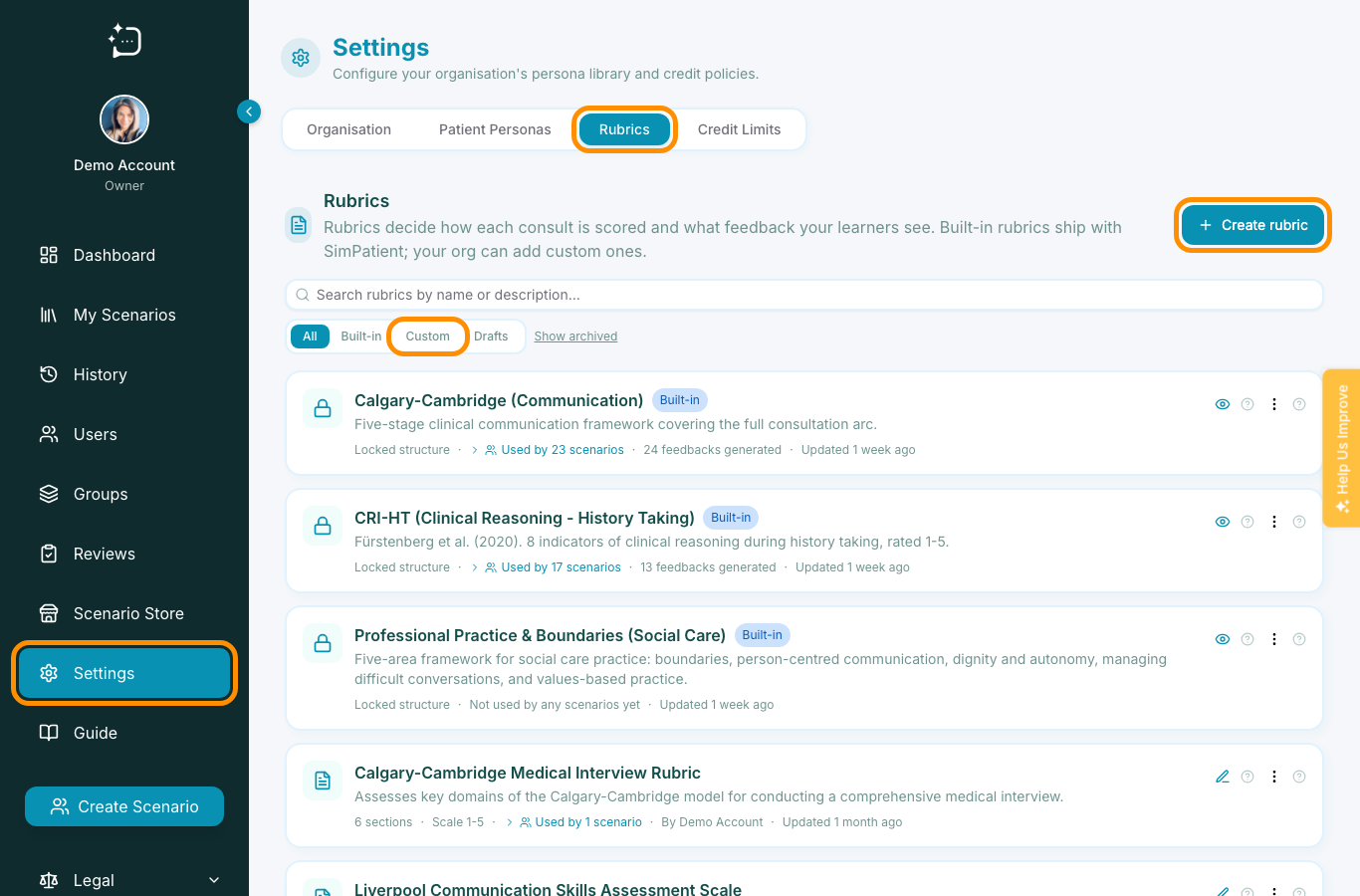
Organisation owners and admins can create custom rubrics from Settings -> Rubrics, or from the Assess step in the scenario wizard by selecting New rubric under Custom rubrics. Authors who do not have permission will need an organisation owner or admin to create the rubric for them.
Start from a source
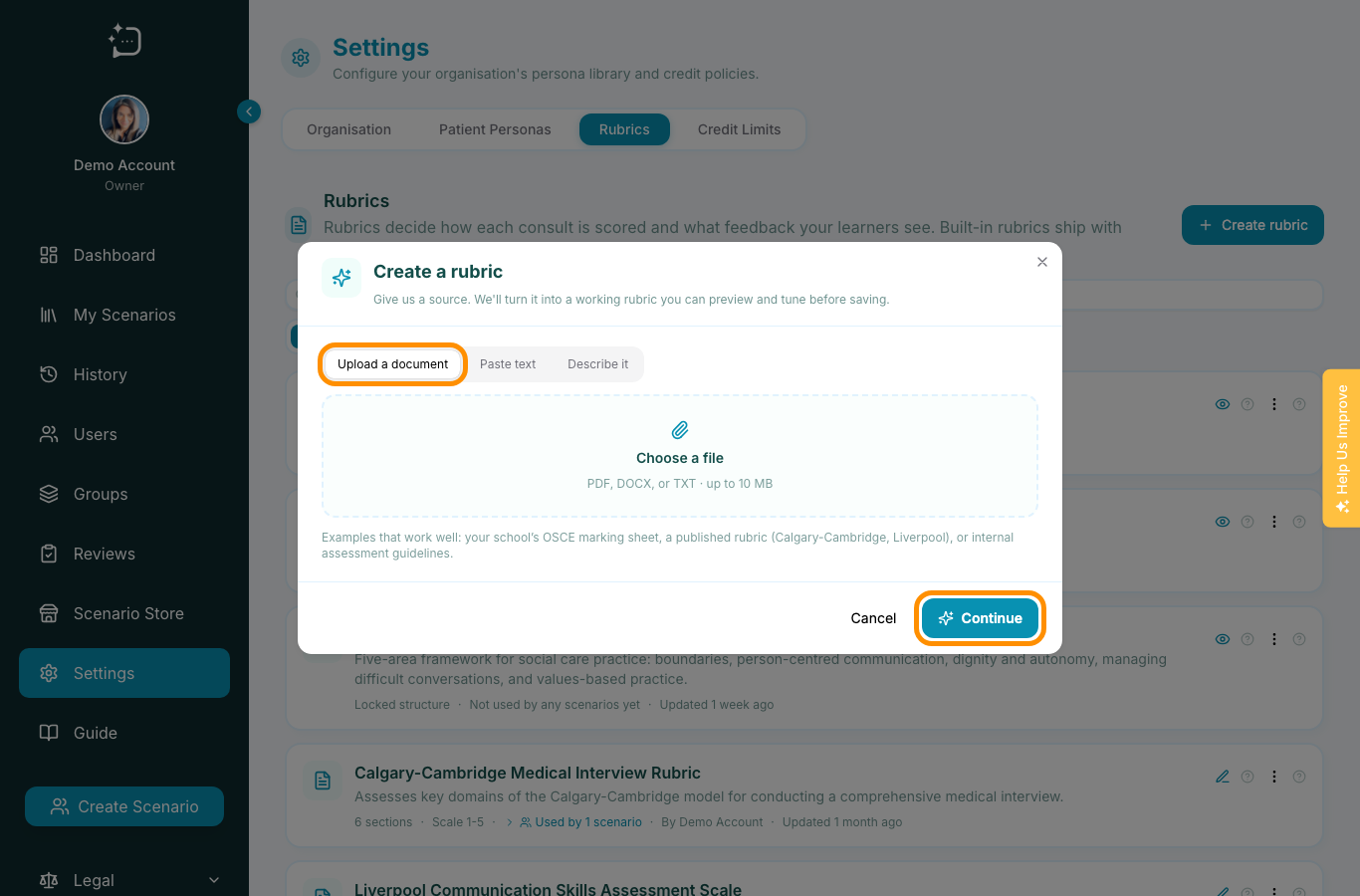
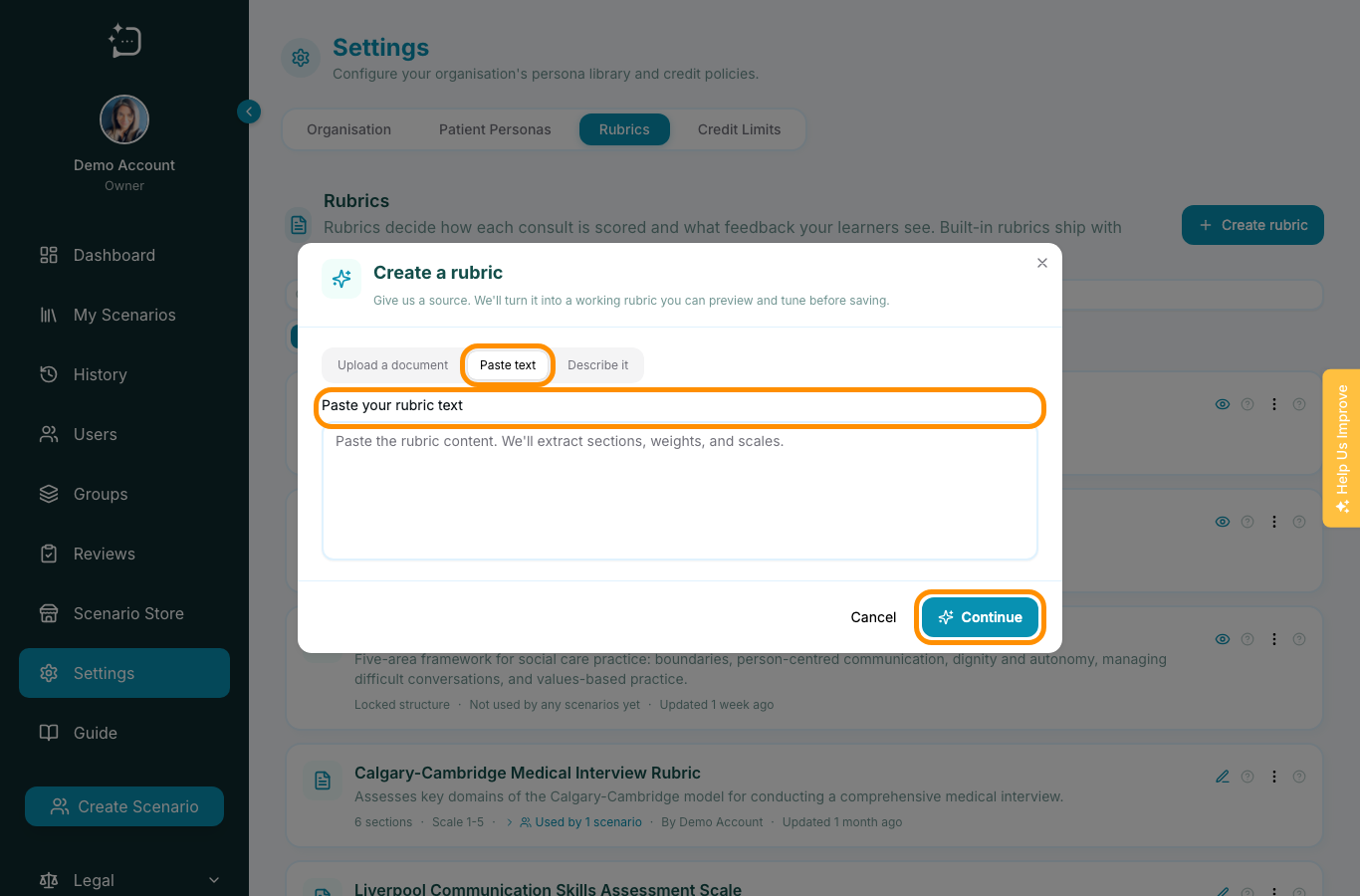
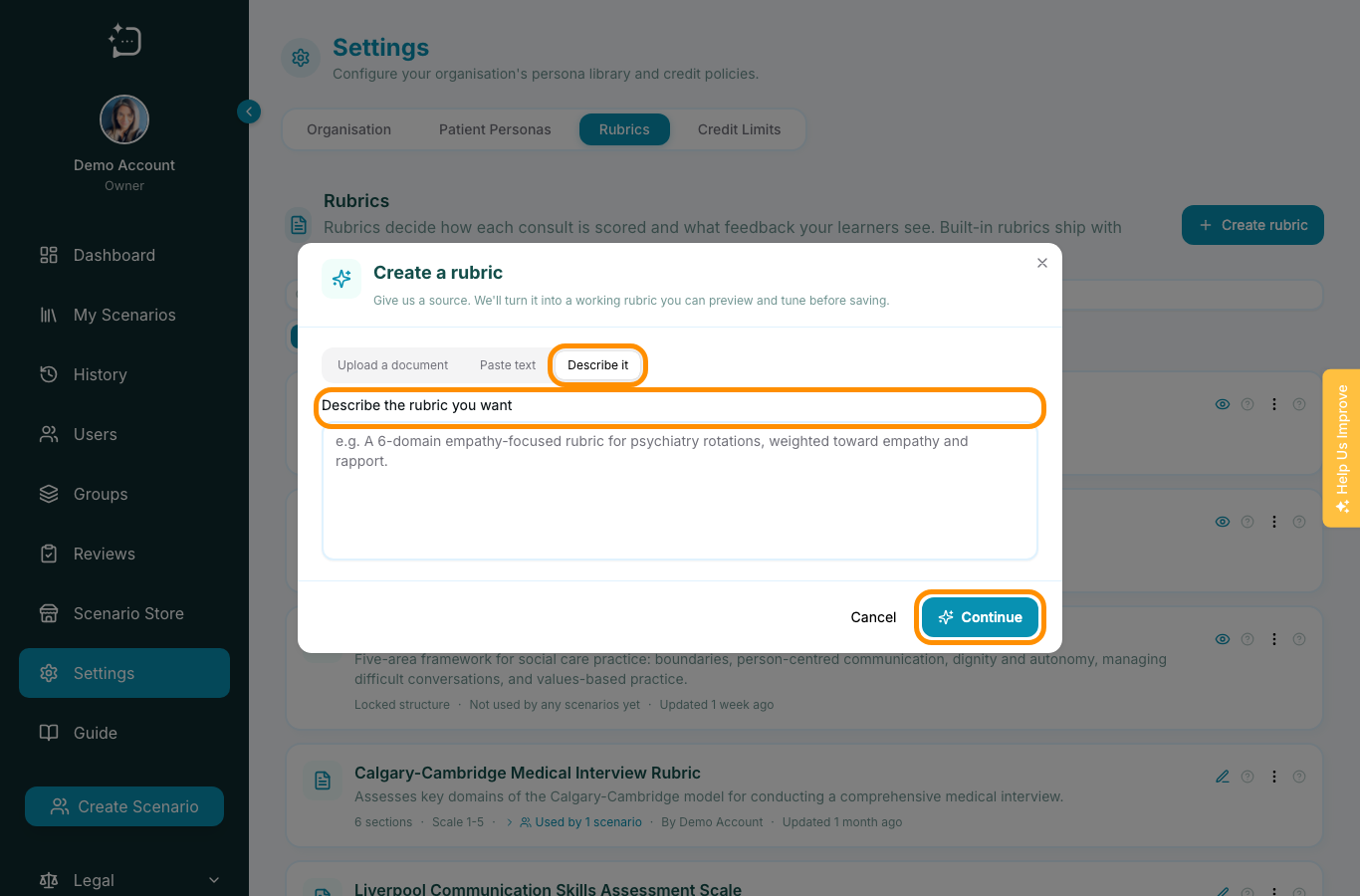
When you create a rubric, SimPatient asks how you want to seed it. You can upload a PDF, Word document, or text file; paste existing rubric text; or describe the rubric you want in plain language.
Review and edit the generated rubric
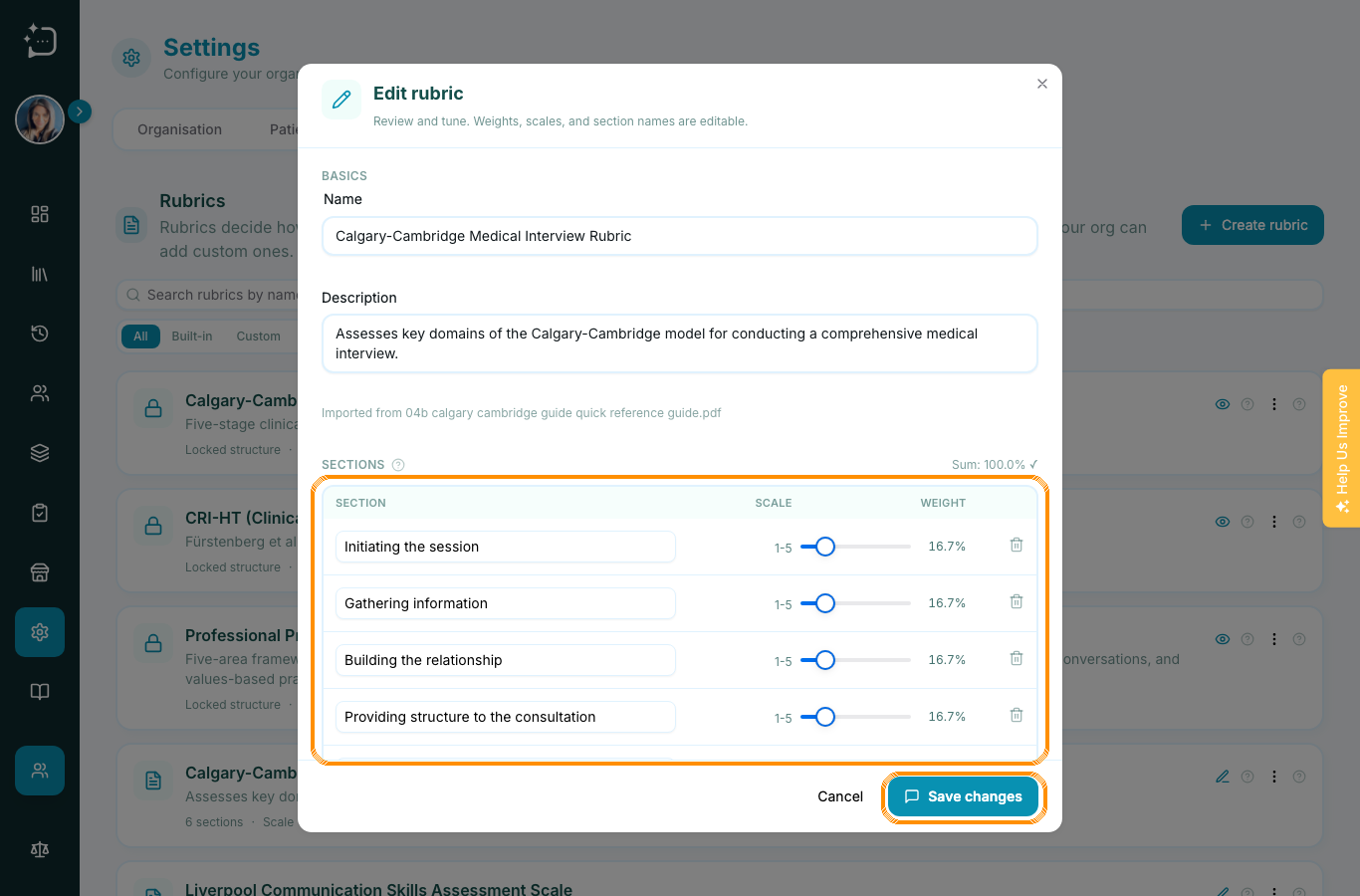
After the rubric is generated, review the name, description, sections, scale, and weights. Section weights must add up to 100%. You can rename sections, adjust weights, remove sections, add new sections, or use Equal weights when you want every section to contribute evenly.
Dry-run before publishing
Use the dry-run area to test the rubric against sample consultations or past consultations before relying on it with learners. This helps you check whether the feedback is useful, whether the weighting feels fair, and whether the section wording is clear enough.
Save draft vs publish
New custom rubrics are drafts first. A draft is useful while you are editing, but it is not ready for scenario authors to pick. Publish the rubric when it has been reviewed and tested; once published, it becomes available to use in scenario assessment.
- Create or open the rubric from Settings -> Rubrics.
- Choose Upload, Paste text, or Describe it.
- Review every generated section and make sure the weights total 100%.
- Choose whether learners should see numeric scores.
- Dry-run the rubric against a sample or past consultation.
- Save as draft while editing, then publish when it is ready for scenarios.
Did this help?
If you're still stuck, email hello@simpatient.co.uk.